


 Downloader
 Free FTP
Promote Your Product
Got a product, service, or story to share? Promote it directly to our active community and boost your brand today.
Create an Ad
Publish Bulk Blog Posts
Boost Your Reach! 📝
Have articles, guest posts, or bulk stories to publish? Send your content directly to our editorial team and feature on our platform.
Email Us Your PostsDell Laptop Factory Reset from Boot Menu: Easy Method
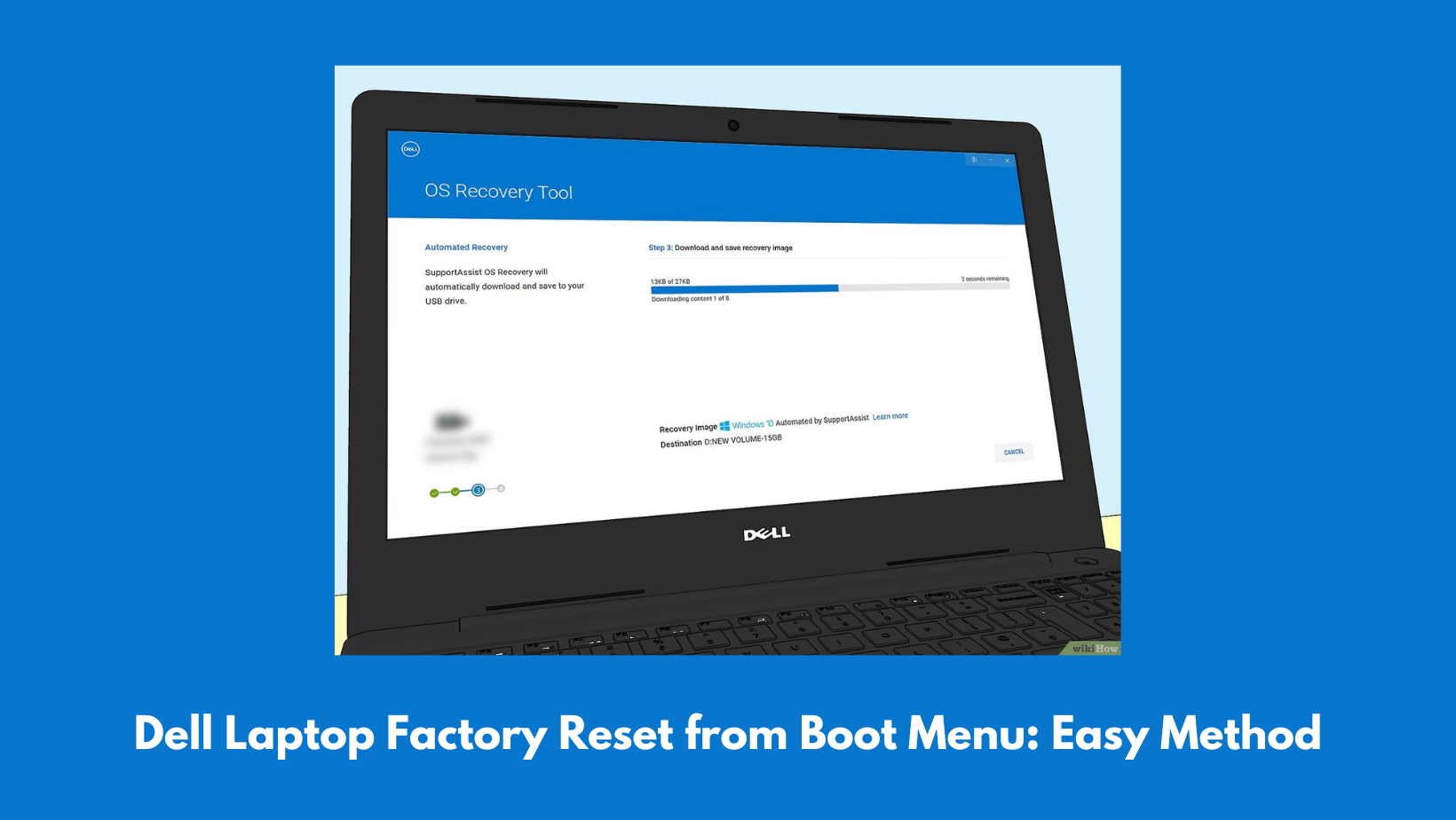
Resetting your Dell laptop to factory settings is a very simple process and can be quite useful when your system is not working as perfectly as you want it to be. If you are stuck in the startup loop, running slow, or infected with malware, then there is no need for you to worry, as a simple factory reset will fix all your issues. A simple factory reset from the boot menu is useful when Windows is not loading properly on your device. Now, if you are not sure how to reset Dell Laptop, then you can use this article to learn how to do the same.
Why should you perform a factory reset on your Dell laptop?
A factory reset wipes your Dell laptop clean. It erases your apps, files, and any tweaks you’ve made, putting everything back to how it was when you first opened the box. This is the way to go if your laptop won’t boot into Windows, keeps crashing, or if you’re planning to hand it off to someone else. Before you start, back up anything important. The reset will delete everything for good.
How to Get to the Boot Menu on a Dell Laptop?
To reset from boot, you need to first shut down your Dell completely. Turn it back on, and right away, start tapping the F12 key. If you time it right, you’ll see the One-Time Boot Menu pop up. This menu lets you reach recovery tools, even if Windows is totally messed up.
How to Factory Reset from the Boot Menu?
From the Boot Menu, pick SupportAssist OS Recovery or Recovery Environment, depending on the kind of Dell you have. Let it load up and look for the option ‘Reset’ or ‘Factory Reset’ on the recovery screen.
Next, choose Reset to Factory Settings or Reset and Remove All Data. Confirm, follow the prompts, and let the reset do its thing. It usually takes anywhere from 20 minutes to over an hour, depending on your laptop. The Dell laptop factory reset will be completed within minutes.
Doing a factory reset will delete your data, so we suggest taking a backup before factory reset, but if you have lost your data, we recommend using Datarecovee software to recover your lost files.

 English
 Arabic
 Spanish
 Portuguese
 Deutsch
 Turkish
 Dutch
Dutch
 Italiano
 Russian
 Romaian
 Portuguese (Brazil)
 Greek
Greek
