

 Downloader
 Free FTP
Troubleshooting Common Issues in Windows 10 and Windows 11: Step-by-Step Solutions | Hire IT Expert
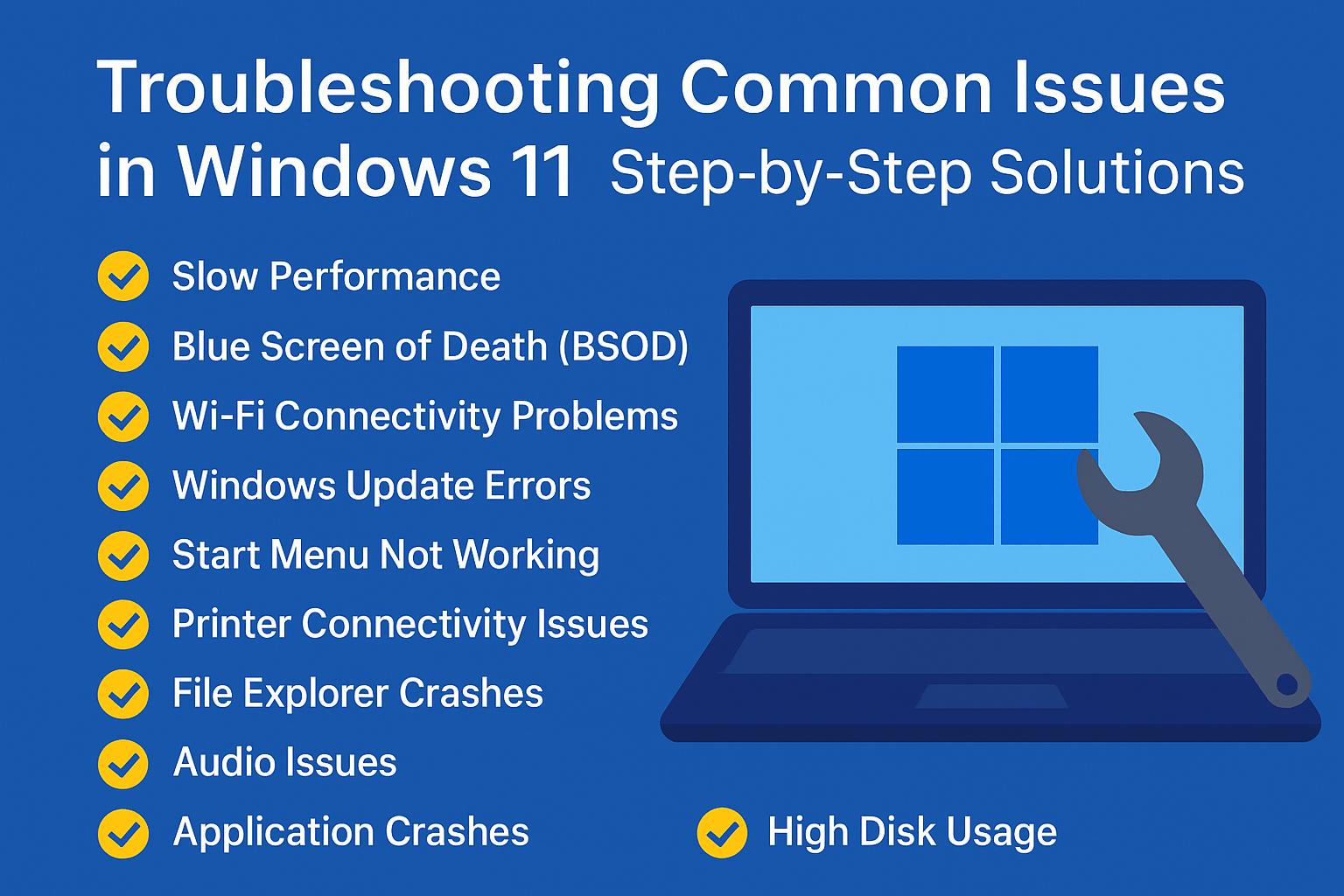
Welcome to our in-depth guide on the most common issues faced by Windows 10 and Windows 11 users, along with their possible fixes. Whether you’re a casual user or an IT professional, this detailed resource will help you troubleshoot and resolve frequent Windows-related problems. Additionally, we provide guidance on when it may be necessary to seek help from IT professionals—including options available through Hire IT Expert if you require reliable support.
Table of Contents
-
Introduction
-
Common Issues and Fixes
-
Slow Performance
-
Blue Screen of Death (BSOD)
-
Wi-Fi Connectivity Problems
-
Windows Update Errors
-
Start Menu Not Working
-
Printer Connectivity Issues
-
File Explorer Crashes
-
FAQs
-
Contact Details for IT Assistance
Introduction
Windows 10 and Windows 11 are among the most widely used operating systems worldwide due to their powerful features, user-friendly interface, and excellent compatibility. However, like all operating systems, they are not free from technical problems. Users commonly experience issues such as slow performance, system crashes, connectivity problems, update failures, and software glitches.
This comprehensive guide explores the most common issues Windows users face, explaining the causes and offering clear, step-by-step solutions. If you find yourself dealing with more advanced problems, our Additional Resources and IT support details can help you take the next step toward restoring your system smoothly.
Common Issues and Fixes
1. Slow Performance
One of the most common complaints among Windows users is slow system performance. A sluggish computer can be caused by unnecessary startup programs, outdated drivers, low RAM, malware infections, or limited disk space.
Causes:
-
Too many startup applications
-
Not enough RAM
-
Outdated drivers
-
Malware or viruses
-
Full or fragmented disk
Fixes:
Disable Startup Programs:
Open Task Manager (Ctrl + Shift + Esc), navigate to the Startup tab, and disable unnecessary apps.
Upgrade RAM:
If your system has low memory, upgrading RAM can dramatically boost performance.
Update Drivers:
Open Device Manager → select a device → right-click → Update driver.
Perform Malware Scan:
Use Windows Defender or another antivirus to detect and remove threats.
Free Up Disk Space:
Use Disk Cleanup or delete temporary and unnecessary files to improve speed.
2. Blue Screen of Death (BSOD)
The BSOD is a critical system error that forces your PC to restart. It usually stems from hardware problems, corrupt files, driver conflicts, or overheating.
Causes:
-
Faulty or loose hardware
-
Driver issues
-
Corrupted system files
-
Overheating
Fixes:
Check Hardware:
Reseat RAM, check cable connections, and inspect faulty components.
Update Drivers:
Outdated or conflicting drivers are major BSOD triggers—regular updates help prevent crashes.
Run SFC Scan:
Open Command Prompt as administrator and run:
Reduce Overheating:
Clean dust buildup, ensure proper airflow, and check cooling fans.
3. Wi-Fi Connectivity Problems
Wi-Fi issues can interrupt your workflow or online communication. These problems often arise due to router errors, outdated drivers, or misconfigured network settings.
Causes:
-
Router malfunction
-
Outdated network drivers
-
Incorrect network configuration
Fixes:
Restart Router:
Switch it off for 10 seconds and restart.
Update Network Drivers:
Use Device Manager to install the latest drivers.
Reset Network Settings:
Go to:
Settings → Network & Internet → Status → Network Reset.
4. Windows Update Errors
Windows updates are essential for system security and performance. When they fail, it’s often due to corrupt files, insufficient space, or connectivity issues.
Causes:
-
Corrupted update cache
-
Low storage space
-
Unstable internet
Fixes:
Run Windows Update Troubleshooter
Settings → Update & Security → Troubleshoot → Windows Update.
Delete Update Cache:
Navigate to:
C:\Windows\SoftwareDistribution
Delete the contents of the folder.
Ensure Enough Space:
Free up disk space or move large files to an external drive.
5. Start Menu Not Working
A frozen or unresponsive Start Menu can disrupt your navigation and productivity.
Causes:
-
Damaged system files
-
Conflicting applications
Fixes:
Restart Windows Explorer:
Task Manager → Processes → Windows Explorer → Restart.
Run SFC & DISM scans:
Create New User Account:
Settings → Accounts → Add someone else to this PC.
6. Printer Connectivity Issues
Printers often fail to respond due to driver problems, network issues, or offline status.
Causes:
-
Outdated printer drivers
-
Network problems
-
Printer set to offline mode
Fixes:
Update Drivers:
Device Manager → Printers → Update driver.
Check Network Settings:
Ensure printer and computer are on the same Wi-Fi network.
Set Printer Online:
Control Panel → Devices and Printers → right-click printer → “Set as Default Printer.”
7. File Explorer Crashes
File Explorer crashes unexpectedly when dealing with corrupted files or conflicting software.
Causes:
-
Corrupt system data
-
Faulty extensions
-
Outdated OS
Fixes:
Clear File Explorer History:
File Explorer Options → General → Clear.
Run SFC/DISM Tools:
Repair damaged system files to restore stability.
Update Windows:
Install updates to ensure compatibility and bug fixes.
FAQs
Q1: How often should I update drivers?
Every 2–3 months or whenever you face performance issues.
Q2: Can I uninstall problematic Windows updates?
Yes—go to Settings → Update & Security → View update history → Uninstall updates.
Q3: What if none of the fixes work?
If issues persist, contact a professional IT technician for proper diagnostics and repairs
Contact Details for IT Assistance
If you need professional support, reach out to:
Phone: +44 1245 79 0577
Email: [email protected]
Website: https://hireitexpert.co.uk
Hire IT Expert is available for remote help, onsite repair, troubleshooting, virus removal, and complete IT support across the UK.

 Arabic
 French
 Spanish
 Portuguese
 Deutsch
 Turkish
 Dutch
Dutch
 Italiano
 Russian
 Romaian
 Portuguese (Brazil)
 Greek
Greek