

 Downloader
 Free FTP
Promote Your Product
Got a product, service, or story to share? Promote it directly to our active community and boost your brand today.
Create an Ad
Publish Bulk Blog Posts
Boost Your Reach! 📝
Have articles, guest posts, or bulk stories to publish? Send your content directly to our editorial team and feature on our platform.
Email Us Your PostsHow to Fix Duplicate MBOX Files Without Eliminating the Original File?
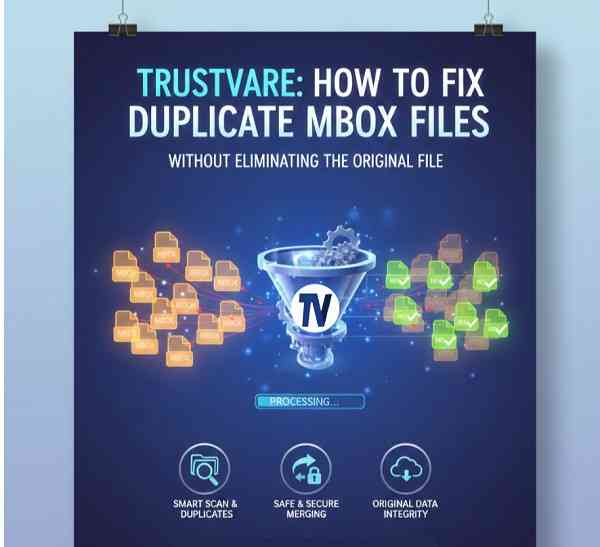
For every single day out there, email is one of the most necessary communication tools with which we deal. The mere importance of maintaining email data is to keep it clean, organised, and intact, whether for using it to manage client discussions, checking updates on projects, or for long-term communication records. Emailing becomes a mess with duplicate MBOX files filling the space. It slows performance with longer mailbox searches while compromising the risk of managing important messages. You want to eliminate the duplicates without affecting or losing the original MBOX files. Most often, it is the fear of deleting authentic emails when cleaning duplicates during an attempt at refinement which will inhibit a user. The good news is, it shouldn't have to be.
This blog explores safe methods, manual steps, and smart tools that allow you to fix duplicate MBOX files while keeping the original file fully protected.
Why Do Duplicate MBOX Files Show Up in the First Place?
It can help to know why these duplicates appear in the first place before you actually start to fix them.
The usual reasons that lead to duplicate MBOX files are:
- Duplicate MBOX files usually occur because of:
- Repeated imports of the same mailbox
- Sync errors between devices
- Old backups merging with new data
- Email client crashes or indexing issues
Given that not only is too much space being used, but also confusion is created in the management of email records, cleaning up these duplicates assumes significance.
The Manual Way of Fixing Duplicate MBOX Files
Many people choose to try manual methods first before resorting to software. Here we present safe and practical methods usable at your own risk.
Method 1: Remove Duplicate Emails Using Thunderbird Add-ons
Mozilla Thunderbird enables importing the MBOX files and running extensions that can detect duplicate emails.
Steps:
- First of all, install Mozilla Thunderbird on your PC.
- Download and install the extension: Remove Duplicate Messages (Alternate).
- Run Thunderbird and enable the extension from Tools → Add-ons.
- Import your MBOX file from Tools → Import → Import MBOX File.
- Select the folder in which duplicates are present.
- Right-click the folder → Remove Duplicate Messages.
- Thunderbird will scan for duplicates and display them → click on Delete.
Pros:
- Simple and Free
- Valid for small-sized MBOX files
Cons:
- Not favourable for large-sized MBOX files
- Add-ons are not upgraded regularly
- Could miss duplicates which are deeply nested
- Requires repeated importation of files
Method 2: Sort Emails by Subject, Sender, or Date
You can sort your emails using whichever attribute Thunderbird or Apple Mail offers to help you locate duplicates manually.
Steps:
- Import MBOX files using Thunderbird.
- Sort emails by Subject, Sender, or Date.
- Select repeated emails one at a time.
- Hit Delete or Shift + Delete to kill them.
Cons:
- Time-consuming
- High chance of accidentally deleting genuine emails
- Difficult in the case of large MBOX files
Method 3: Export MBOX into Multiple Small MBOX Files and Review
If your MBOX file is very large, splitting it helps identify duplicates manually.
Steps:
- Import a large MBOX into Thunderbird.
- Create new folders (Folder1, Folder2, Folder3).
- Move batches of emails into these folders.
- Export each folder as a separate MBOX file.
- Review each smaller file and delete duplicates manually.
Manual reviews have become slow and technically difficult for non-technical users.
What Not To Do?
Some users misuse shortcuts, often causing irreversible damage. Avoid them.
- Never try to read MBOX files with Notepad or a text editor. Manual editing breaks email formatting and completely ruins the file.
- Do not delete MBOX files directly. Two MBOX files need not be the same; one might contain unique emails.
- Never use third-party scripts unless you're an expert; most scripts do not check for safety and can delete real emails.
The manual method seems tedious; if the MBOX files are large, use a dedicated duplicate-removal application to safeguard against data loss.
Best Method to Fix Duplicate MBOX Files Without Eliminating the Original File
Manual techniques are helpful but limited. They require effort, technical knowledge, and risk of human error. A professional tool is the TrustVare MBOX Duplicate Remover, is a highly reliable option. The software automatically scans MBOX files like emails, attachments, etc, finds duplicate items and removes them within a few easy steps. The tool handles many duplicate MBOX files without downloading any application. The software runs on all Windows OS versions like 11, 10, 8.1, 8, and 7. It has a simple UI for non-technical users. Users can use s free trial before buying this tool.
Why Use This Software?
- Scans your MBOX file deeply
- Detects duplicate emails using multiple factors (subject, header, body, sender, etc.)
- Fast scanning with accurate results
- Keeps your original MBOX file untouched and safe
- Works with all MBOX-supported email clients (Thunderbird, Apple Mail, Eudora, Entourage, etc.)
- Maintains folder structure and formatting
- User-friendly interface
The tools apply to the professional, more automated, and less technically complicated approaches. This makes the process simple and hassle-free.
Final Words
Cleaning duplicate MBOX files while making sure that the original file remains unharmed seems cumbersome, particularly in doing this manually. There are many ways through which cleaning duplicate MBOX files could be done, such as using Thunderbird add-ons, manually sifting through the emails, or dividing MBOX files, but this option seems more limiting. The most efficient and safest way rests with a qualified MBOX Duplicate Remover tool to ensure that the original MBOX is untouched at all.

 English
 Arabic
 French
 Spanish
 Portuguese
 Deutsch
 Turkish
 Dutch
Dutch
 Italiano
 Russian
 Romaian
 Portuguese (Brazil)