


 Downloader
 Free FTP
Promote Your Product
Got a product, service, or story to share? Promote it directly to our active community and boost your brand today.
Create an Ad
Publish Bulk Blog Posts
Boost Your Reach! 📝
Have articles, guest posts, or bulk stories to publish? Send your content directly to our editorial team and feature on our platform.
Email Us Your PostsHow to Use QuickBooks Database Server Manager to Share Company Files
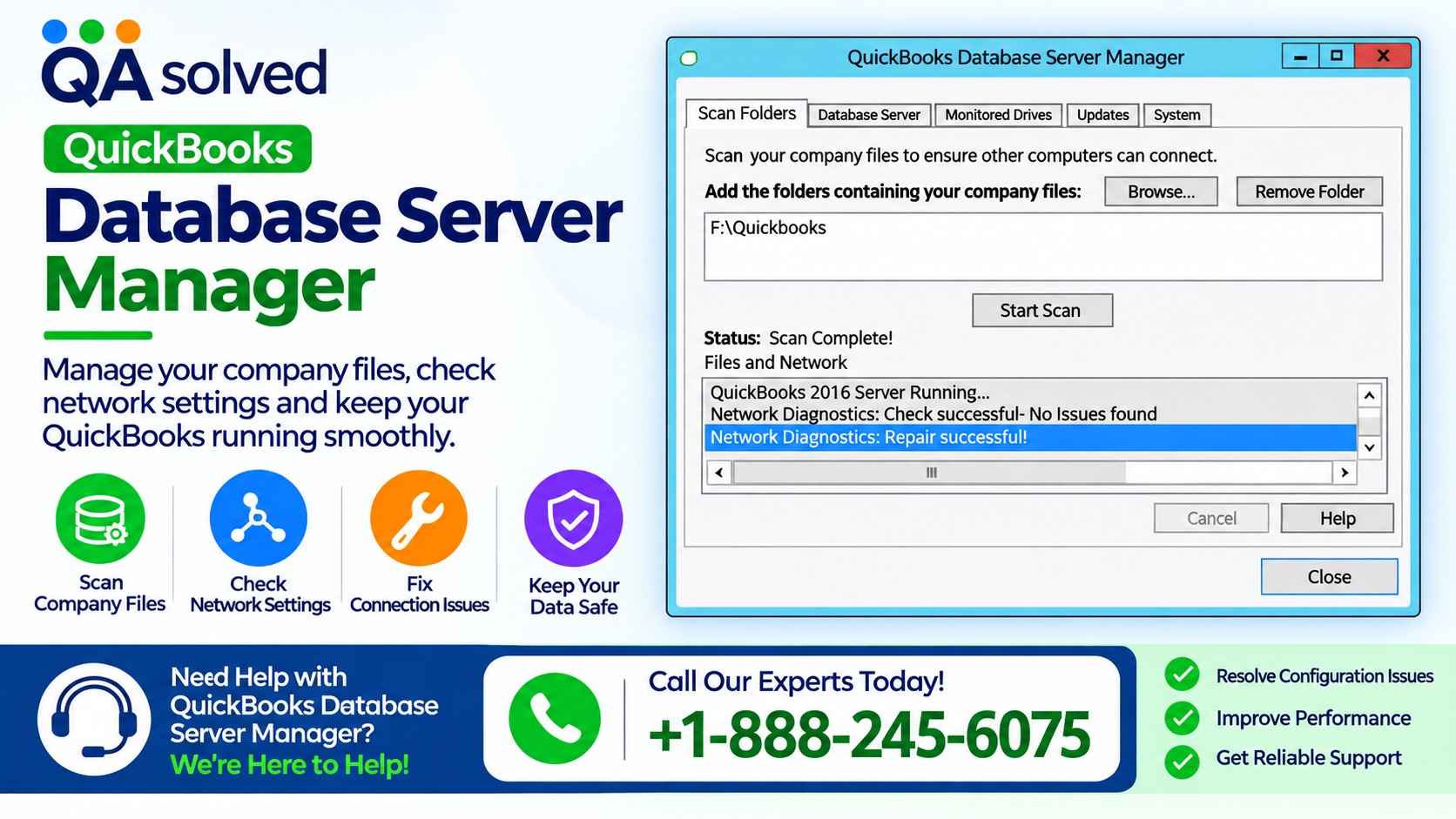
Businesses often need multiple employees to access the same financial records. QuickBooks Desktop makes this possible with the QuickBooks Database Server Manager, a tool that allows users to share company files across a network. It helps businesses manage multi-user access while keeping their financial data available to authorized computers.
To use this feature, you must install the Database Server Manager on the computer that stores your company files. This computer acts as the server, allowing other workstations on the network to access the shared data.
If you use QuickBooks Desktop on only one computer and do not need multi-user access, you generally do not need to install this tool separately.
What Is QuickBooks Database Server Manager?
QuickBooks Database Server Manager is a utility included with QuickBooks Desktop. It helps host company files on a network so multiple users can work with the same financial data.
The tool also helps manage network access and supports multi-user mode. When configured correctly, it allows employees to access shared company files from their workstations without moving the files between computers.
Before starting the installation, make sure you have administrator access to the server computer and know where your QuickBooks company files are stored.
How to Download QuickBooks Database Server Manager
You do not need to download a separate installer for QuickBooks Database Server Manager. The utility comes with the QuickBooks Desktop installation package.
Follow these steps to get the required installation files:
1. Visit the official QuickBooks website and download the appropriate QuickBooks Desktop installer for your product.
2. If QuickBooks Desktop is already installed, check for the latest available updates.
3. Run the installer to access the Database Server Manager installation options.
4. Follow the installation instructions displayed on your screen.
Updating QuickBooks Desktop also updates its associated Database Server Manager components when applicable. Always use an installer compatible with your QuickBooks Desktop version.
Steps to Install QuickBooks Database Server Manager
Install the Database Server Manager on the computer that hosts your company files. Follow the instructions below to complete the setup.
Step 1: Prepare the Server Computer
Close QuickBooks Desktop and all other open applications on the server computer. Make sure you have administrator permissions to install software and change Windows settings.
If your network uses multiple QuickBooks Desktop versions, install the oldest version first and then proceed to the newest version.
Step 2: Run the QuickBooks Installation File
Locate the QuickBooks Desktop installation file you downloaded. The file may be named Setup_QuickBooks.exe.
Double-click the file to start the installation process. Follow the on-screen instructions and enter your product and license information if prompted.
Step 3: Select the Correct Installation Type
When the installer asks you to choose an installation type, select Custom or Network Options, then click Next.
Avoid selecting Express Install when you need to preserve an existing QuickBooks installation. Express Install may replace the previous version, which could be important for compatibility or troubleshooting.
Step 4: Choose Your Network Setup
QuickBooks provides options based on how you plan to use the server computer.
Option 1: I'll be using QuickBooks Desktop on this computer, AND I'll be storing our company file here.
Choose this option if you want to run QuickBooks Desktop and host company files on the same computer. It installs the required components for this setup.
Option 2: I will NOT be using QuickBooks Desktop on this computer.
Select this option if the computer will only host company files and run the Database Server Manager. Users can then access the hosted files from other computers on the network.
Choose the option that matches your business requirements, then click Next.
Step 5: Complete the Installation
Click Install and allow the setup process to finish. Follow any additional prompts displayed by the installer.
QuickBooks creates a Windows service user for each Database Server Manager version. For example, the service account for QuickBooks Desktop 2023 may appear as QBDataServiceUser33.
Make sure the appropriate service account has the required permissions to access the folders containing your company files. Incorrect folder permissions can prevent the server from hosting company data properly.
How to Configure QuickBooks Database Server Manager
The Database Server Manager usually works with its default settings. However, you may need to review its Windows service configuration when troubleshooting startup or hosting problems.
Follow these steps to check the service settings:
1. Open the Windows Start menu.
2. Type Services in the search bar and open the Services application.
3. Locate the service named QuickBooksDBXX, replacing XX with the applicable version number.
4. Open the service properties and select the General tab.
5. Check the Service status. If the service is running and you need to change its settings, stop it first.
6. Set Startup type to Automatic if appropriate for your configuration.
7. Open the Log On tab and review the service account settings.
Important: Do not change the service account to Local System or modify other service settings without confirming that the change is appropriate for your QuickBooks version and network configuration. Follow the official Intuit instructions for your specific setup.
If your approved configuration requires Local System, select the Local System account option as directed by Intuit.
Configure Service Recovery Options
You can also review the service recovery settings to help the Database Server Manager restart after a failure.
1. Open the service properties.
2. Select the Recovery tab.
3. Review the actions assigned to First failure, Second failure, and Subsequent failures.
4. If recommended for your configuration, select Restart the Service for the applicable failure options.
5. Return to the General tab and start the service again.
Confirm that the service status shows Running or Started before testing access from another workstation.
How to Configure Firewall Permissions
Windows Firewall or third-party security software may block network connections required by QuickBooks Database Server Manager. Configure the firewall to allow the appropriate QuickBooks programs and network traffic.
Here is what you should do:
· Open Windows Security and review your firewall settings.
· Allow the required QuickBooks applications through the firewall on the appropriate network profile.
· Check whether your antivirus software is blocking QuickBooks services.
· Verify the required ports and firewall rules for your specific QuickBooks Desktop version.
· Test access from a workstation after making the changes.
Only create firewall exceptions that are necessary for your trusted business network. Avoid disabling your firewall or antivirus protection permanently.
How to Scan Company Files Using Database Server Manager
After installing the utility, scan the folders containing your company files so QuickBooks can identify the files that need network hosting.
Follow these steps:
1. Open QuickBooks Database Server Manager on the server computer.
2. Locate the option for scanning company files or folders.
3. Select the folder that stores your QuickBooks company files.
4. Start the scan and wait for it to finish.
5. Open QuickBooks Desktop on a workstation and test access to the company file.
Keep your company files in a shared folder with the appropriate Windows permissions. If users cannot open the file, review the folder permissions, hosting configuration, firewall rules, and Database Server Manager service status.
Common QuickBooks Database Server Manager Problems
Even after installation, you may encounter network or file-access issues. Common causes include:
· Incorrect folder-sharing permissions.
· A stopped Database Server Manager service.
· Firewall rules blocking network communication.
· Incorrect hosting settings on workstations.
· Incompatible QuickBooks Desktop versions.
· Company files stored in an inaccessible folder.
To troubleshoot these problems, confirm that the server is online, the company file is available, and the Database Server Manager service is running. You should also verify that the server and workstations use compatible QuickBooks versions.
Before making major configuration changes, create a backup of your company file.
Final Thoughts
QuickBooks Database Server Manager helps businesses share company files and support multi-user access across a network. To configure it successfully, install the utility on the server computer, select the correct network setup, review service and folder permissions, configure firewall access, and scan the company file folders.
Keep QuickBooks Desktop updated, maintain regular backups, and verify network settings whenever users experience connection problems. These steps can help maintain reliable access to shared financial data.
Frequently Asked Questions
1. Do I Need QuickBooks Database Server Manager?
You generally need it when multiple computers must access a QuickBooks Desktop company file hosted on a network. A single-user setup may not require it.
2. Can I Install Database Server Manager Without QuickBooks Desktop?
Yes. During installation, choose the option that indicates you will not use QuickBooks Desktop on the server computer. This allows the computer to host company files without using the full QuickBooks Desktop program.
3. Where Should I Install QuickBooks Database Server Manager?
Install it on the computer that stores and hosts your company files. Other authorized computers can then connect to the shared files over the network.
4. Why Can't Other Computers Access My QuickBooks Company File?
Possible causes include incorrect folder permissions, firewall restrictions, a stopped database service, or incorrect hosting settings. Check these areas and scan the company file folder again if needed.
5. How Do I Know If Database Server Manager Is Running?
Open the Windows Services application and locate the appropriate QuickBooksDBXX service. Check its status to see whether it is running.

 English
 Arabic
 French
 Spanish
 Portuguese
 Deutsch
 Turkish
 Dutch
Dutch
 Russian
 Romaian
 Portuguese (Brazil)
 Greek
Greek
