


 Downloader
 Free FTP
Promote Your Product
Got a product, service, or story to share? Promote it directly to our active community and boost your brand today.
Create an Ad
Publish Bulk Blog Posts
Boost Your Reach! 📝
Have articles, guest posts, or bulk stories to publish? Send your content directly to our editorial team and feature on our platform.
Email Us Your PostsHow to Set Up Multi-User Network Mode in QuickBooks Desktop
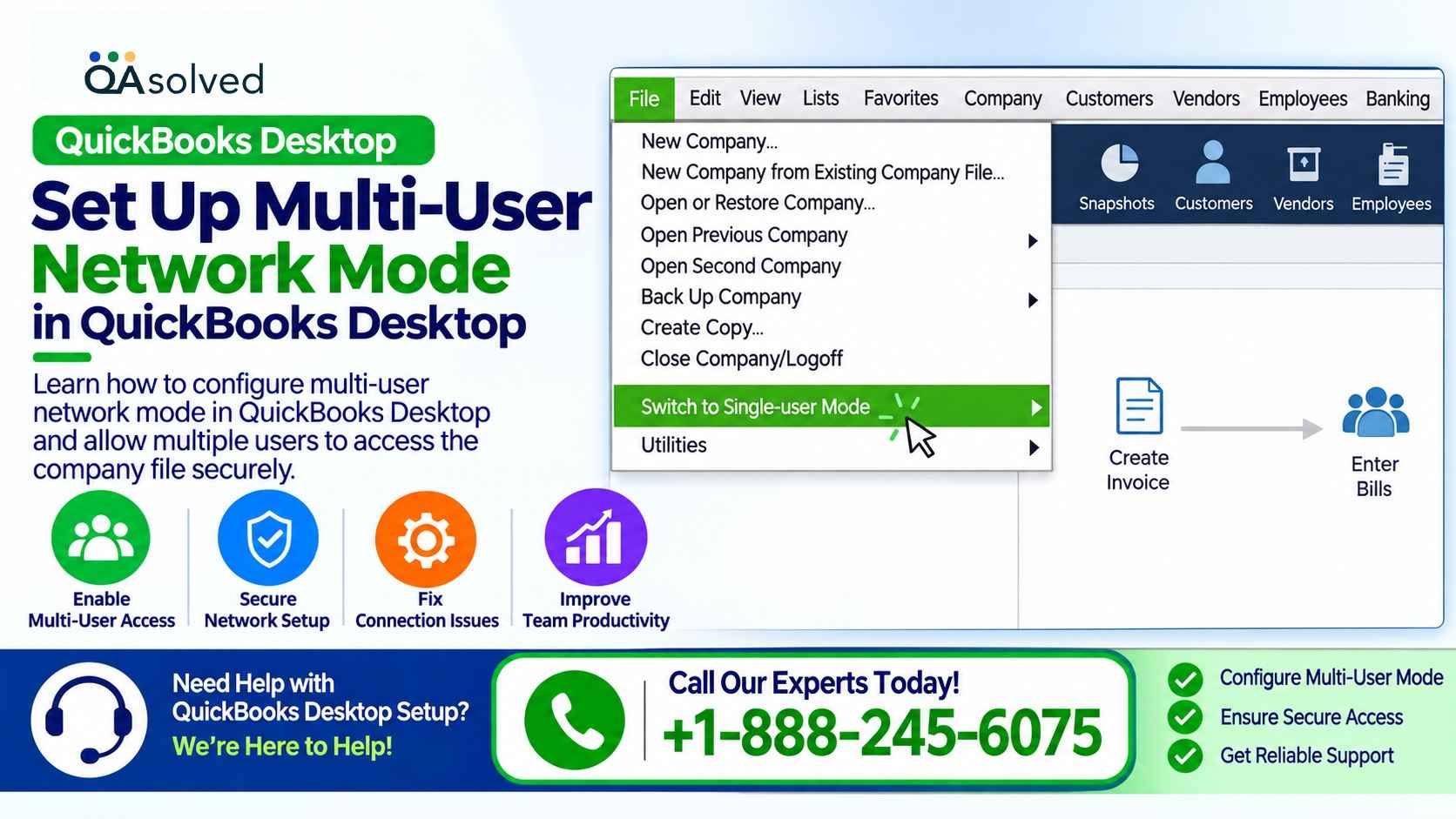
Working with company financial records becomes easier when multiple employees can access the same data. Multi-User Network Mode in QuickBooks Desktop allows several users to work on a shared company file from different computers on the same network. However, you must configure hosting settings, Windows permissions, and database services correctly to make this feature work.
This guide explains QuickBooks Desktop hosting, the different hosting modes, database server requirements, and how QuickBooks connects to a company file. Follow these details to understand how to configure a reliable multi-user environment.
What Is Multi-User Network Mode in QuickBooks Desktop?
Multi-user mode allows multiple authorized users to access a QuickBooks Desktop company file simultaneously. Instead of transferring the file between computers, users connect to a shared file stored on a host computer or server.
This setup helps businesses manage accounting tasks, update financial records, and collaborate with team members. However, every computer must have the required network access, and each user needs valid QuickBooks login credentials.
Before enabling multi-user access, make sure that:
· The company file is stored in an accessible network location.
· The host computer has the appropriate QuickBooks database service.
· Windows permissions allow authorized users to access the company file.
· Each user has a separate QuickBooks username and password.
· The computers can communicate over the local network.
What Does Hosting Mean in QuickBooks Desktop?
Hosting refers to allowing a computer to store a QuickBooks company file and make it available to other computers on the network. The computer responsible for providing access is known as the host.
QuickBooks Desktop uses a database service to manage company file access. The service depends on the QuickBooks Desktop version installed.
Examples include:
· QuickBooks Desktop 2024: QuickBooksDB34
· QuickBooks Desktop 2023: QuickBooksDB33
· QuickBooks Desktop 2022: QuickBooksDB32
You can check the related Windows services through the Windows Services application. Look for the QuickBooks database service that corresponds to your installed version.
Choosing the correct hosting configuration is important because an incorrect setting can prevent other computers from opening the company file.
How QuickBooks Desktop Accesses a Shared Company File
QuickBooks Desktop checks three essential requirements before allowing users to access a company file.
1. Windows File Permissions
Windows must give the appropriate user or service account sufficient permissions to access the company file and its associated folders. Depending on the network configuration, users may need permissions to read, create, modify, and write files.
If permissions are missing, QuickBooks may display an error or fail to open the company file.
2. Database Server Availability
The QuickBooks database server must be running correctly and able to access the company file. The server manages connections between QuickBooks Desktop and users working on other computers.
3. QuickBooks User Credentials
Every person accessing the company file should use their assigned QuickBooks username and password. These credentials help control access to accounting information and maintain appropriate user permissions.
When these requirements are satisfied, authorized users can connect to the shared company file.
Different QuickBooks Desktop Hosting Modes
QuickBooks Desktop offers three hosting modes. The selected mode determines how the computer runs its database server and whether it can host company files for other users.
1. Not Hosting Mode
In Not Hosting mode, the database manager runs as a normal process under the Windows user running QuickBooks Desktop.
This configuration does not support remote multi-user access through that computer's database server. QuickBooks communicates with the local database using shared memory.
Use this mode when the computer does not need to host company files for other network users.
2. Hosting Local Files Only Mode
In Hosting Local Files Only mode, the QuickBooks database manager runs as a Windows service, typically named QuickBooksDBXX. The corresponding service account is generally named QBDataServiceUserXX, with the version-specific number replacing XX.
The service can continue running while the computer is on, even when a user is not actively running QuickBooks Desktop.
This mode supports multi-user access through TCP/IP network communication. Other computers can connect to company files stored on the host computer.
Choose this configuration when one dedicated computer or server stores the company file and provides access to other workstations.
3. Hosting Local & Remote Files Mode
In Hosting Local & Remote Files mode, the database manager runs as a normal process under the currently logged-in Windows user. The process generally starts when that user signs in and stops when the user signs out.
This mode supports multi-user access through TCP/IP. It can also allow the local computer to work with files stored on other computers, depending on the network and hosting configuration.
Because this mode depends on the Windows user's session, it may be less suitable for a dedicated server that must provide continuous access.
Important: Hosting settings are configured separately for each computer and QuickBooks Desktop version, rather than being stored in the company file itself. Different versions may have independent hosting settings.
How QuickBooks Desktop Finds the Database Server
QuickBooks Desktop uses a small network descriptor file with the .ND extension to locate the database server associated with a company file.
For example, if your company file is named CompanyFile.qbw, the corresponding network descriptor file may be named CompanyFile.qbw.nd, depending on the QuickBooks version and configuration.
This file is generally stored in the same folder as the company file. It contains connection information, such as the server address and port, that QuickBooks uses to communicate with the database service.
When you open a company file, QuickBooks checks the network information and attempts to connect to the server.
· Successful connection: QuickBooks opens the company file.
· Failed connection: QuickBooks may display a network or hosting error.
A missing, outdated, or incorrect network descriptor file can contribute to connection problems.
How to Troubleshoot Multi-User Network Mode in QuickBooks Desktop
If you cannot open a shared company file, use these troubleshooting steps to identify common network problems.
Step 1: Check Hosting Settings
Open QuickBooks Desktop on the host computer. Go to the File menu and look for the hosting options under Utilities.
If the computer is intended to host the company file, select the appropriate hosting option. On workstations that should not host files, turn off hosting when necessary.
Menu wording may vary by QuickBooks version.
Step 2: Verify the Database Server Service
Open Windows Services and locate the QuickBooks database service for your version. Confirm that the service is running and restart it if necessary.
If the service is missing or fails to start, update or repair the QuickBooks installation as appropriate.
Step 3: Review Folder Permissions
Check the Windows folder permissions for the company file. Make sure the QuickBooks database service account and authorized network users have the required access.
Avoid granting unnecessary permissions to everyone on the network.
Step 4: Run QuickBooks Database Server Manager
On the server computer, open QuickBooks Database Server Manager. Scan the folder containing the company file to help QuickBooks detect the files and maintain the required network configuration.
Back up your company file before performing significant troubleshooting or repair operations.
Step 5: Check Network Connectivity
Confirm that all computers are connected to the same accessible network or an appropriately configured network environment. Review firewall settings to ensure that QuickBooks and its database service can communicate.
Do not disable your firewall permanently. Configure the necessary exceptions according to your QuickBooks version and network setup.
Step 6: Resolve QuickBooks H-Series Errors
Errors such as H101, H202, H303, and H505 commonly indicate hosting or network communication problems.
Check which computer hosts the company file, verify the database service, review firewall permissions, and confirm that the .ND file contains valid connection information. These checks can help restore multi-user connectivity.
Final Thoughts
Setting up Multi-User Network Mode in QuickBooks Desktop requires the correct hosting mode, working database services, suitable Windows permissions, and reliable network communication. Understanding these components helps businesses share accounting data while allowing authorized employees to work simultaneously.
For the best results, choose a hosting configuration that matches your network setup, keep QuickBooks Desktop updated, and back up your company file before making major changes. If multi-user access still fails, investigate database server and H-series errors to identify the underlying problem.
Frequently Asked Questions
1. What is Multi-User Network Mode in QuickBooks Desktop?
It allows multiple authorized users to access the same QuickBooks Desktop company file over a network at the same time.
2. How do I enable multi-user mode in QuickBooks Desktop?
Open the company file and select File > Switch to Multi-user Mode, if available. You must also configure the host computer and database server correctly.
3. Which computer should host the QuickBooks company file?
A dedicated server or computer that remains available to other users is generally the best choice. Store the company file in an appropriately shared folder.
4. Why is QuickBooks Desktop multi-user mode not working?
Common causes include incorrect hosting settings, stopped database services, restricted folder permissions, firewall problems, and network connectivity issues.
5. What do QuickBooks H202 and H505 errors mean?
These errors commonly indicate that QuickBooks cannot establish the required connection to the company file or host computer. Check the database server, hosting configuration, firewall, and network settings.
6. Do all users need separate QuickBooks login credentials?
Yes. Each user should have their own QuickBooks username and password with the appropriate access permissions.
7. How do I check the QuickBooks database service?
Open the Windows Services application and locate the database service associated with your QuickBooks Desktop version.
8. Can QuickBooks Desktop host company files from another computer?
The answer depends on the hosting mode and network configuration. Hosting Local & Remote Files mode can support access to files on remote computers, while Hosting Local Files Only is designed to host files stored locally on the host computer.

 Arabic
 French
 Spanish
 Portuguese
 Deutsch
 Turkish
 Dutch
Dutch
 Italiano
 Russian
 Romaian
 Portuguese (Brazil)
 Greek
Greek
